
Using the Optimisation Service
Optimisation-as-a-Service was introduced four years ago. It has since been reworked substantially and now runs native solvers — HiGHS, SCIP and Clarabel — alongside ojAlgo’s own, behind the same ExpressionsBasedModel code you already have.
This post walks through three steps:
- Run your existing
ExpressionsBasedModelcode against a public test server. - Deploy your own instance.
- Add a licence key to enable the native solvers and multi-core solving.
1 – Try It with the Public Test Server
The example uses the service’s client library. It is one Maven dependency with no transitive dependencies of its own:
<dependency>
    <groupId>se.optimatika</groupId>
    <artifactId>optimisation-service-client</artifactId>
    <version>1.0.0</version>
</dependency>
The client is optional — the service has a plain REST API that any language can call — but with ojAlgo it is by far the simplest route.
The example below makes an ExpressionsBasedModel solve remotely, on a public test server we have made available. It runs as it is, and the comments show the two things you change in your own code: create the model from an environment configured with a remote solver, and call submit(Sense) instead of minimise() or maximise().
Example Code
OptimisationAsAService.javaimport java.util.concurrent.ExecutionException;
import java.util.concurrent.Future;
import org.ojalgo.OjAlgoUtils;
import org.ojalgo.netio.BasicLogger;
import org.ojalgo.optimisation.ExpressionsBasedModel;
import org.ojalgo.optimisation.Optimisation;
import org.ojalgo.optimisation.Optimisation.Environment;
import org.ojalgo.optimisation.Optimisation.Result;
import org.ojalgo.optimisation.Optimisation.Sense;
import org.ojalgo.optimisation.Variable;
import se.optimatika.optimisation.service.client.OptClientV1;
/**
* A program that shows how to use Optimatika's Optimisation-as-a-Service.
*
* @see https://www.ojalgo.org/2026/10/using-the-optimisation-service/
* @see https://www.ojalgo.org/2022/10/optimisation-as-a-service/
*/
public class OptimisationAsAService {
public static void main(final String[] args) throws InterruptedException, ExecutionException {
BasicLogger.debug();
BasicLogger.debug(OptimisationAsAService.class);
BasicLogger.debug(OjAlgoUtils.getTitle());
BasicLogger.debug(OjAlgoUtils.getDate());
BasicLogger.debug();
/*
* Create a client for the optimisation service.
*/
OptClientV1 client = OptClientV1.newInstance("https://optimisation-test-service-840974723912.europe-north2.run.app");
/*
* Verify the service is up and running.
*/
if (!client.isServiceAvailable()) {
BasicLogger.error("Service is not available!");
return;
}
BasicLogger.debug("Service environment: {}", client.getServiceEnvironment());
/*
* If you already have a working model built using ojAlgo's ExpressionsBasedModel you can use that as
* is. Here's how:
*/
Environment environment = Optimisation.newEnvironment();
/*
* Even if you never used Optimisation.Environment before, there is always an implicit default
* environment. What we did here is simply to create a separate environment to use explicitly. Then
* configure that to use a remote solver.
*/
environment.setRemoteSolver(client::putOnQueue, client::pollResult);
/*
* Finally, use the environment as the model factory.
*/
ExpressionsBasedModel model = environment.newModel();
/*
* Let's just build a trivial model...
*/
Variable varA = model.newVariable("A").lower(0).weight(10);
Variable varB = model.newVariable("B").lower(0).weight(-10);
model.newExpression("SumIs2").set(varA, 1).set(varB, 1).level(2);
/*
* Now, to actually solve remotely, call model.submit(Sense)
*/
Future<Result> max = model.submit(Sense.MAX);
/*
* Submitting a large MIP model to solve remotely, it may take a while before you get the response.
*/
Result result = max.get();
BasicLogger.debug();
BasicLogger.debug("Maximised => state={}, value={}", result.getState(), result.getValue());
BasicLogger.debug("A={}, B={}", result.get(0), result.get(1));
Future<Result> min = model.submit(Sense.MIN);
result = min.get();
BasicLogger.debug("Minimised => state={}, value={}", result.getState(), result.getValue());
BasicLogger.debug("A={}, B={}", result.get(0), result.get(1));
// To summarise what you need to do in code:
//
// 1) Create the model instance using an environment configured to solve remotely
// 2) Solve using model.submit(Sense) rather than model.minimise() or model.maximise()
//
// Nothing else!
}
}
Console Output
class OptimisationAsAService
ojAlgo
2026-10-01

Service environment: {"build":{"module":"polar","built":"2026-09-23T14:49:34Z","commit":"ba4f80c","branch":"develop","dirty":"false"},"runtime":"1GB/4threads x86_64 [2GB/8threads, 8MB/8threads, 256kB/2threads, 32kB/2threads]","licence":"Polar (max 4 vCPUs, full solver suite — 2/2 keys valid: 2df1722d granted 2 vCPU; b7a3f2aa granted 4 vCPU)","solvers":{"probed":true,"available":["LP-Clarabel","LP-HiGHS","LP-JVM","LP-SCIP","MILP-HiGHS","MILP-JVM","MILP-SCIP","MIQCLP-SCIP","MIQCQP-SCIP","MIQP-JVM","MIQP-SCIP","QCLP-Clarabel","QCLP-SCIP","QCQP-Clarabel","QCQP-SCIP","QP-Clarabel","QP-HiGHS","QP-JVM"]}}

Maximised => state=OPTIMAL, value=20.0
A=2, B=0
Minimised => state=OPTIMAL, value=-20.0
A=0, B=2
The licence and solvers fields show the test server running the full solver suite — HiGHS, SCIP and Clarabel alongside ojAlgo’s own. It is for experimentation only — restricted on problem size and solve time, and it may be removed at any time. Don’t send it anything confidential. For real use, run your own instance.
2 – Deploy Your Own Instance
The service ships as a public container image, so it runs anywhere containers run. No registry account or credentials are needed:
ghcr.io/optimatika/optimisation-service
Each of the major clouds has a product that deploys a container with little more than the image name:
- AWS — Amazon ECS Express Mode (the successor to App Runner)
- GCP — Cloud Run
- Azure — Container Apps
We find Google Cloud Run particularly convenient. With a GCP account and the Google Cloud CLI installed, this is all it takes:
gcloud run deploy my-opt-serv-test \
  --image ghcr.io/optimatika/optimisation-service \
  --region europe-north1 \
  --cpu 4 \
  --memory 2Gi \
  --max-instances 1 \
  --allow-unauthenticated
The image is the only fixed part; name, region, CPU and memory are up to you. Two of the flags matter more than they look:
--max-instances 1— results are held in memory by the instance that solved them. With several instances, a poll can reach one that has never seen your model. To scale out, run separate services rather than letting one service autoscale.--allow-unauthenticated— makes the instance reachable by anyone who has the URL. The service has no authentication of its own; it is designed to sit inside your network. That is fine for a short test from your laptop. For anything else, restrict who can reach it:--ingress internallimits it to your own VPC, or put an authenticating gateway in front of it. The security notes in the documentation cover this.
By default Cloud Run allocates CPU only while it is handling a request, and the service solves in the background between polls. In our tests that made no practical difference — a MIPLIB model took about 12 seconds either way — but if long solves seem to stall, --no-cpu-throttling gives the instance CPU all the time, at the cost of paying for it while it is up.
The command prints the service URL. Later commands take the service name you chose (my-opt-serv-test), not the URL. Point OptClientV1.newInstance(...) in the example at that URL and run it again.
If you would rather click than type, the Cloud Run console does the same job. Its Create service form asks for the same things the command above passes as flags: the image URL, a service name, a region, and whether the service is publicly reachable. Set the maximum number of instances to 1 in its scaling settings before you create it.
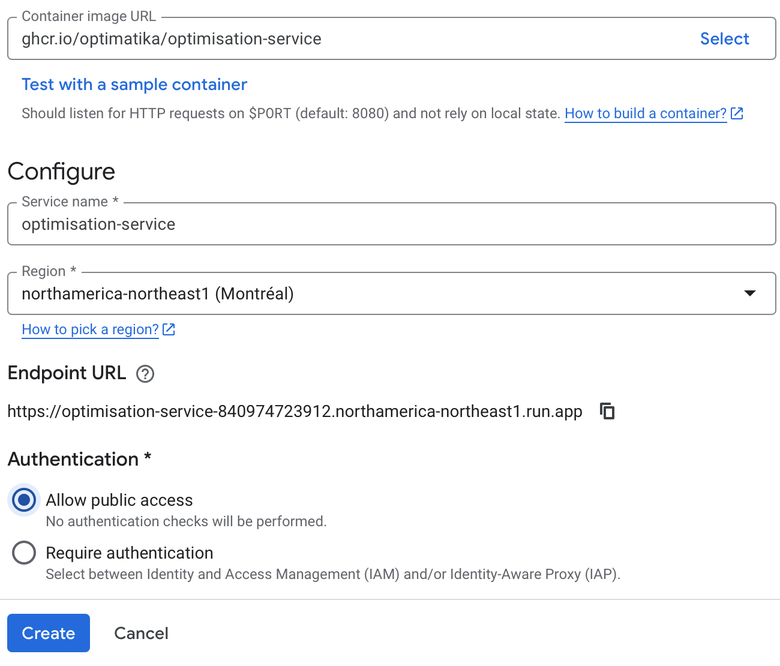
--allow-unauthenticated, with the same caveat as above.Without a licence key the service runs in restricted mode: ojAlgo’s own solvers on a single core, for models of up to 1,000 variables or constraints. That is free, and enough to test your setup end to end. Once that works, the same instance becomes the full service with a licence key — nothing to redeploy.
3 – Unlock the Full Solver Suite
The native solvers and multi-core solving come with an Optimatika subscription. It gives you licence keys for the number of vCPUs in your tier, support, and access to the ojAlgo-extensions repository with the solver integrations.
A subscription issues one key per step of the ladder — a Standard subscription issues two. Supply all of them, separated by spaces, so that a later plan change never leaves the server without a valid key:
gcloud run services update my-opt-serv-test \
  --region europe-north1 \
  --update-env-vars "OPTIMATIKA_LICENCE_KEY=key-one key-two"
The update restarts the service with the keys in place. Use --update-env-vars rather than --set-env-vars: it adds the key and keeps any other variables the service has, where --set-env-vars replaces them all. The same command works on a service that is already running — nothing else about it changes. For a production service, keep the keys in Secret Manager instead of a plain environment variable (--update-secrets OPTIMATIKA_LICENCE_KEY=optimatika-licence:latest; the service account needs the Secret Manager Secret Accessor role).
To confirm the keys were accepted, ask the server what it sees:
curl -s https://your-service-url/optimisation/v1/environmentThe licence field reports how many keys validated and the capacity they resolved to — for a Standard subscription, max 4 vCPUs, full solver suite — 2/2 keys valid — and solvers lists the native solvers, exactly as in the console output above.
Your data stays with you. Models, input data and results never leave your deployment — they are held in memory only and expire an hour after last access. Optimatika hosts nothing and never sees your models. The server makes one outbound call: the licence check, which sends the licence key — nothing about your models — to the payment provider to confirm the subscription is in force.
Deployment on Kubernetes, sizing, the REST API and the full configuration reference are in the Optimisation Service documentation.
- ← Previous
MIP Benchmark: MIPLIB